
WHOLESALE
HELP WITH ENGAGE
Help and support with the Engage platform
Welcome to Engage. It’s great to have the opportunity to work with you.
The world is becoming more complex. You need to extend the reach of your network, control costs and ensure the security of your business — all while adopting new ways of working.
We’re not claiming that solving such complexities is simple. But now we’re working together we hope that Engage makes it easier and faster for you to get what you need. Then you can use the solutions you choose to turn those everyday complexities into opportunities.
User Guide
Supported browsers
The Engage portal can be accessed from the following URL:
portal.virginmediabusiness.co.uk/portal/login
Supported browser versions –
Chrome v31 and above
Firefox v25 and above
IE8 and above
Safari (Mac) v6 and above
A shorter, Quick Reference User Guide has been put together too. This can be located in the ‘My Documents’ section of the Engage Portal, alternatively click on the following link:
Quick Reference Guide
Once you have launched the site, please follow the on-screen instructions.
Logging in
At first login, you’ll be asked several questions to personalise and secure your account.
You should have received an email from us containing a username, and password. If not, please contact your system administrator.
Enter the login details provided – as indicated below – then click the “Login” button. Please note: your username and password are case-sensitive.
By logging into and / or by using the Engage portal you accept and agree to be bound by the Engage Terms of Use (a link to the related document can be found near the bottom of the page).
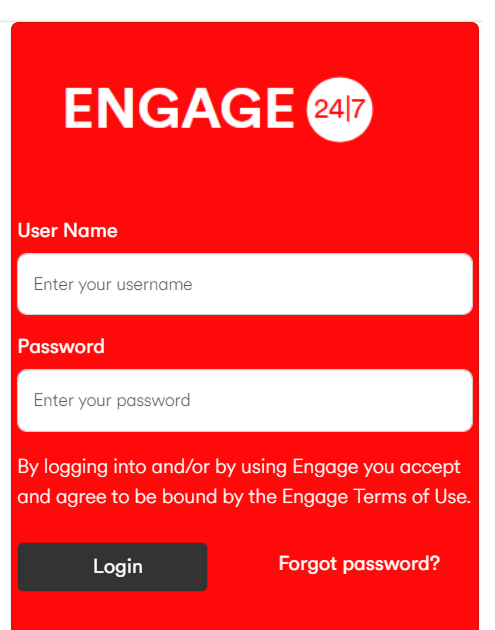
Initial Login Password Reset
Once you’ve logged in, you’ll be prompted to reset your password. This is your chance to create a personal password that’s a little easier to remember.
Password format requirements are as follows:
- Minimum of fourteen characters
- At least one digit
- One upper case letter
- One lower case letter
- One of the following special characters “@ # $ %”
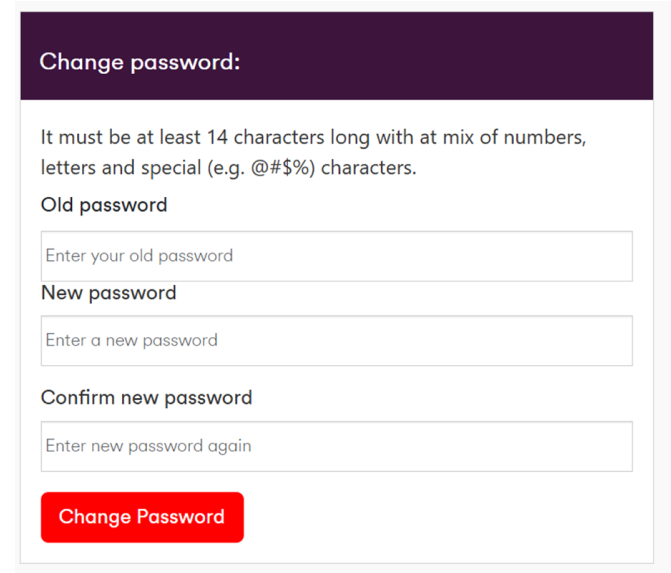
How to change your password
To change your password, select the change password option under the My Account tab. You’ll now have a view on-screen similar to the box displayed below. Enter your new password and then re-enter for confirmation.
Remember! Password format requirements are as follows, minimum of fourteen characters, at least one digit, one upper case letter, one lower case letter and one of the following special characters “@ # $ %”.
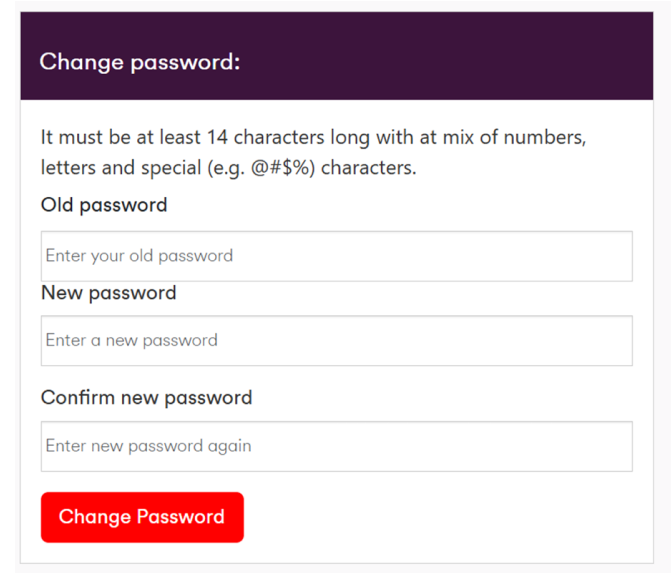
Now click “Change Password” to submit change. You’ll be redirected to the homepage, where you’ll receive a confirmation message at the top of the page advising password change has been successful.
Forgot your password?
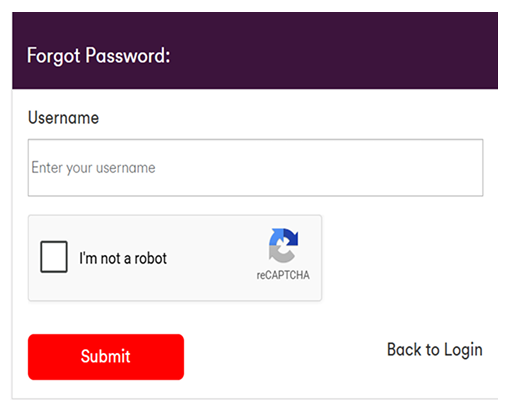
If you can’t recall your password then at the homepage there is the option to request a reset.
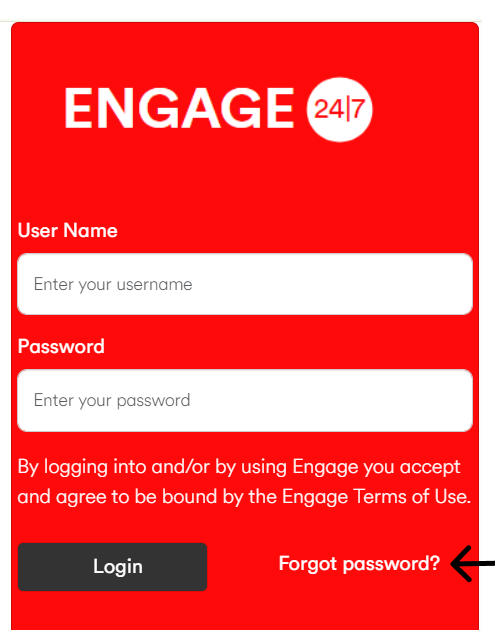
Then enter your username and you’ll be emailed a link to reset your password.
Account locked?
After three failed attempts your account will be locked out. To gain access again, please contact your Engage administrator.
Where possible please request a password reset on a second failed attempt to login. Otherwise, your account will lock on a third failed attempt.
